I found another Windows 11 improvement. In Windows 10 when I wanted to
run a infrequently used program, I would open the Start menu, click All, scroll down the list and click what I wanted. about 5 to 10 seconds.
In Windows 11 with the improved start menu, I click on the Start, spend
15 seconds trying to guess which folder my program was in, spend another
15 to 20 seconds opening different folder looking for my program, and
when I finally find the folder, clicking my program.
That is quite an improvement over Windows 11.
I found another Windows 11 improvement. In Windows 10 when I wanted toIf you click the little 'all' on the start menu and get the same alpha list you had in
run a infrequently used program, I would open the Start menu, click All, scroll down the list and click what I wanted. about 5 to 10 seconds.
In Windows 11 with the improved start menu, I click on the Start, spend
15 seconds trying to guess which folder my program was in, spend another
15 to 20 seconds opening different folder looking for my program, and
when I finally find the folder, clicking my program.
That is quite an improvement over Windows 11.
I found another Windows 11 improvement.ÿÿ In Windows 10 when I wanted to
run a infrequently used program, I would open the Start menu, click All, scroll down the list and click what I wanted.ÿ about 5 to 10 seconds.
In Windows 11 with the improved start menu, I click on the Start, spend
15 seconds trying to guess which folder my program was in, spend another
15 to 20 seconds opening different folder looking for my program, and
when I finally find the folder, clicking my program.
That is quite an improvement over Windows 11.
I found another Windows 11 improvement. In Windows 10 when I wanted to
run a infrequently used program, I would open the Start menu, click All, scroll down the list and click what I wanted. about 5 to 10 seconds.
In Windows 11 with the improved start menu, I click on the Start, spend
15 seconds trying to guess which folder my program was in, spend another
15 to 20 seconds opening different folder looking for my program, and
when I finally find the folder, clicking my program.
That is quite an improvement over Windows 11.
You could just click on the Start Menu icon in the taskbar,
On Thu, 15 Jan 2026 18:01:50 -0500, knuttle wrote:
I found another Windows 11 improvement. In Windows 10 when I wanted to run a infrequently used program, I would open the Start menu, click All, scroll down the list and click what I wanted. about 5 to 10 seconds.
In Windows 11 with the improved start menu, I click on the Start, spend
15 seconds trying to guess which folder my program was in, spend another
15 to 20 seconds opening different folder looking for my program, and
when I finally find the folder, clicking my program.
That is quite an improvement over Windows 11.
You're supposed to use 'Search'. That will spawn Edge and take you
someplace you never wanted to go.
VanguardLH wrote:
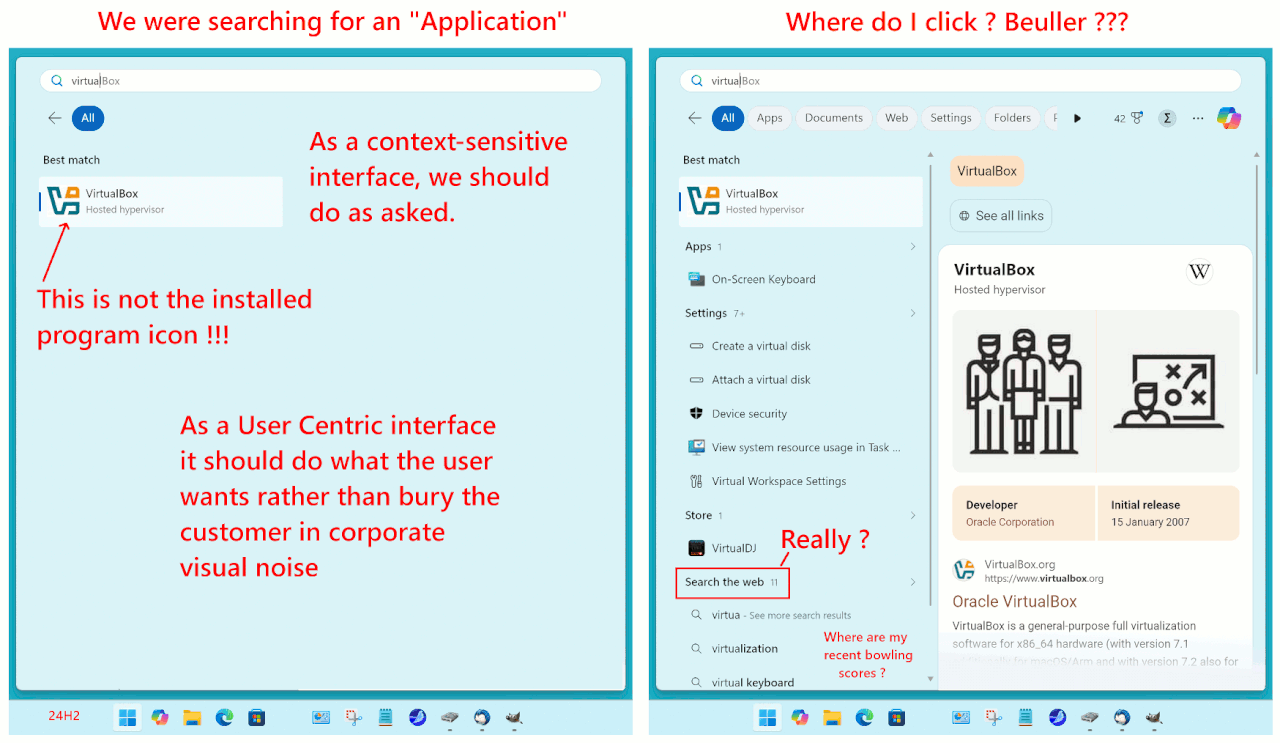
You could just click on the Start Menu icon in the taskbar, and start typing the name of the program. For example, click Start, and type "ccleaner" to find that program.
Doesn't work when you type "oh ... thingy, you know the utility that
does [whatever] what's its name, with the orange icon"
VanguardLH wrote:
You could just click on the Start Menu icon in the taskbar, and start
typing the name of the program. For example, click Start, and type
"ccleaner" to find that program.
Doesn't work when you type "oh ... thingy, you know the utility that
does [whatever] what's its name, with the orange icon"
Frank Slootweg wrote:
But, as others mentioned, Real Men (TM) use Open-Shell Menu or
something similar.
Real Men (TM) use Linux, preferably with the KDE DE.
VanguardLH wrote:
You intend to run a program or start an app, but you don't know what it
is called?
Sometimes names just aren't very catchy, the tool I often struggle to remember the name of is "WinDirStat"
knuttle wrote on 1/15/2026 4:01 PM:
I found another Windows 11 improvement.ÿÿ In Windows 10 when I wanted to run a infrequently used program, I would open the Start menu, click All, scroll down the list and click what I wanted.ÿ about 5 to 10 seconds.
In Windows 11 with the improved start menu, I click on the Start, spend 15 seconds trying to guess which folder my program was in, spend another 15 to 20 seconds opening different folder looking for my program, and when I finally find the folder, clicking my program.
That is quite an improvement over Windows 11.
Multiple methods using the Start Menu to access seldom used programs and apps.
ÿAs VGH noted, click Start button, begin typing name of program, select and run.
ÿA savvy person might even do more...Create a group on the Start Menu(labeled e.g. Seldom Use), pin the program to the Start Menu, drag to the group. A few clicks(less than 10 seconds, less than 5 after wrote learning) is all that is necessary.
Bottom line - learn how to use the features whether the os and its features are liked or not liked.
On 16 Jan 2026 16:31:05 GMT, Frank Slootweg wrote:[...]
rbowman <bowman@montana.com> wrote:
You're supposed to use 'Search'. That will spawn Edge and take you
someplace you never wanted to go.
I don't know how you've configured things, but for me 'Search' just
goes to the search function of the Start menu. Edge is not involved, unless/until one of the results is a link and you click on that.
But, as others mentioned, Real Men (TM) use Open-Shell Menu or
something similar.
Real Men (TM) use Linux, preferably with the KDE DE.
Real Men (TM) use Linux, preferably with the KDE DE.
| Sysop: | Jacob Catayoc |
|---|---|
| Location: | Pasay City, Metro Manila, Philippines |
| Users: | 5 |
| Nodes: | 4 (0 / 4) |
| Uptime: | 24:11:09 |
| Calls: | 117 |
| Calls today: | 117 |
| Files: | 368 |
| D/L today: |
560 files (257M bytes) |
| Messages: | 70,913 |
| Posted today: | 26 |